Making a Game in Unity
Introduction
Making a game has always been a goal of mine, so when an open ended assignment came up in a programming class, where I could make anything in any software, I figured it was the perfect opportunity to improve my programming abilities and make a game in Unity.
The Idea for the Game
The premise for the game is essentially controlling two characters with inverted controls at the same time. This idea came when brainstorming ways to make a simple platformer more complex and new to the player. This simple game mechanic was chosen as it could lead to many interesting level designs where you would need to carefully pay attention to multiple things at the same time, making it a mix of strategy and platformer.
The Code
This game took a lot of code to create. There were 22 different scripts which varied from 30 lines to 400 lines; so this section will function more as an overview rather than a comprehensive analysis of all of it.
Title Screen
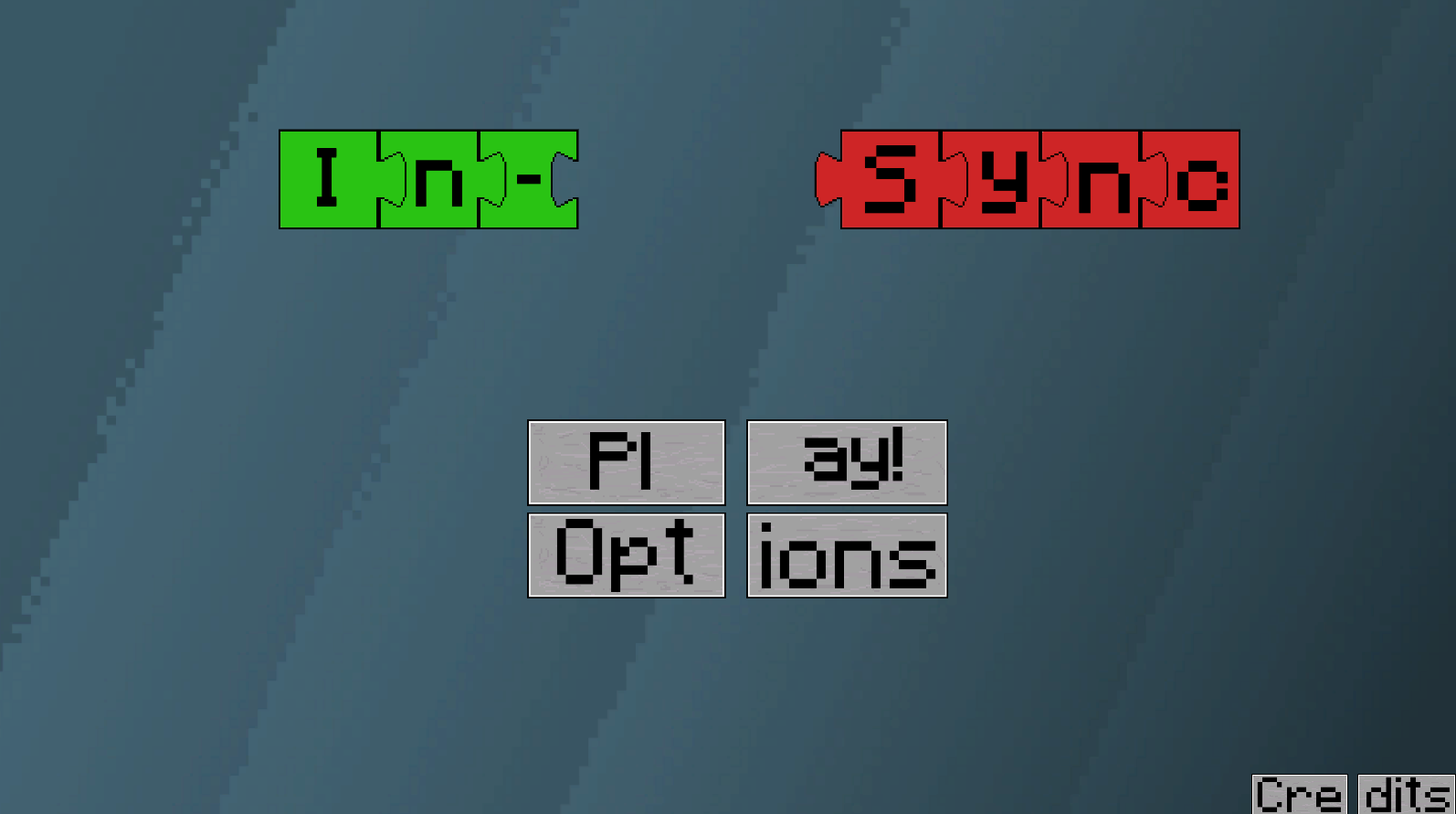
As shown below, when the game starts, the title screen moves. This is driven by code however, not just a predetermined animation.
The code for this is as shown and functions to move the two pieces towards and away from each other
1
2
3
4
5
6
7
8
9
10
11
12
13
14
15
16
17
18
19
20
21
22
23
24
public float speed;
    // Start is called before the first frame update
    void Start()
    {
        transform.position = points[startingPoint].position;
    }

    // Update is called once per frame
    void Update()
    {


            if (Vector2.Distance(transform.position, points[i].position) < 0.02f)
            {
                i++;
                if (i == points.Length)
                {
                    i = 0;
                }

            }

        transform.position = Vector3.MoveTowards(transform.position, points[i].position, speed * Time.deltaTime);
    }
Movement
As the movement is the only way that the players interact with the world in the game, it was important to make it feel intuitive as possible. On top of this, the special game mechanic relies on inverted controls between characters, which needs to look right. The way the movement looks in game is shown below:
The actual movement code is the same script twice for each character, but making one inverted. The code for the green character is shown. This was made with help from tutorials on movement, stack overflow, and a lot of trial and error.
1
2
3
4
5
6
7
8
9
10
11
12
13
14
15
16
17
18
19
20
21
22
23
24
25
26
27
28
   public void Update()
    {
        // Handle input and update movement variables
        if (loadNewScene.Connect == false)
        {
            if (X_locked == false) { _horizontalDirection = GetInput().x; }
            _verticalDirection = GetInput().y;
            if (Input.GetButtonDown("Jump")) _jumpBufferCounter = _jumpBufferLength;
            else _jumpBufferCounter -= Time.deltaTime;
            if (Input.GetKeyDown("right shift") && X_locked == false) _dashBufferCounter = _dashBufferLength;
            else _dashBufferCounter -= Time.deltaTime;

            animator.SetFloat("Speed", _horizontalDirection);

            if (Input.GetKeyDown("b") && portalCollision == true)
            {
                _horizontalDirection = 0;
                X_locked = !X_locked;
                Debug.Log("V");
            }
        }
        else
        {
            _horizontalDirection = 0;
            _verticalDirection = 0;
            animator.SetFloat("Speed", 0);
        }
    }
To get more advanced movements, different parameters were constantly checked to ensure realistic movement could be achieved. For example, while jumping, linear drag is applied to the characters so they slow down horizontally. Additionally, once the characters are no longer touching the ground they can only jump a certain amount of times before returning to the ground once again:
1
2
3
4
5
6
7
8
9
10
11
12
13
private void Jump(Vector2 direction)
    {
        // Handle jumping
        if (!_onGround && !_onWall)
            _extraJumpsValue--;

        ApplyAirLinearDrag();
        _rb.velocity = new Vector2(_rb.velocity.x, 0f);
        _rb.AddForce(direction * _jumpForce, ForceMode2D.Impulse);
        _hangTimeCounter = 0f;
        _jumpBufferCounter = 0f;
        _isJumping = true;
    }
Death Screen
When an obstacle is hit, or the player falls out of bounds, a death animation plays.
This death animation was relatively simple, and made by turning the size of the characters up and sliding a black circle across the scene on a collision/falling out of bounds.
1
2
3
4
5
6
7
8
9
10
11
12
13
14
15
16
17
18
19
20
21
22
23
24
25
26
27
    void Start()
    {
        death = 0;
    }

    // Update is called once per frame
    void Update()
    {
        if (death == 1)
        {
            deadAnim.Play("RightDeath"); //blow up the player
            anim.SetTrigger("Wipe2"); //wipe the screen
            Invoke("Reload", 1);
        }
    }

    void OnCollisionEnter2D(Collision2D collision)
    {
        if (collision.gameObject.tag == "Enemy")
        {
            death = 1;
        }
    }
    void Reload() // reload the level from the start
    {
        SceneManager.LoadScene(SceneManager.GetActiveScene().buildIndex);
    }
Game Mechanics
To keep the game interesting throughout, some different mechanics were introduced in different levels. One was a moving platform which requires a timed jump. This presented an interesting programming challenge as the player would need to match the movement of the platform while on it. This was done with the following code snippet:
1
2
3
4
5
6
7
8
9
10
11
12
13
14
15
16
17
18
19
20
21
22
23
24
25
26
27
28
29
30
  void Start()
    {
        transform.position = points[startingPoint].position; // Set the starting position of the platform
    }

    void Update()
    {


        if (Vector2.Distance(transform.position, points[i].position) < 0.02f) // If the distance between the platform and the next point is less than 0.02, move to the next point
        {
            i++;
            if (i == points.Length) // If the platform reaches the last point, go back to the first point
            {
                i = 0;
            }

        }

        transform.position = Vector3.MoveTowards(transform.position, points[i].position, speed * Time.deltaTime); // Move the platform towards the next point
    }

    private void OnCollisionEnter2D(Collision2D collision)
    {
        collision.transform.SetParent(transform); // By setting the player as a child of the platform, the player will move with the platform
    }
    private void OnCollisionExit2D(Collision2D collision)
    {
        collision.transform.SetParent(null); // When the player leaves the platform, it is no longer a child of the platform
    }
Another interesting design element added to the game was admittedly heavily inspired by a game called Mario Maker, where an On/Off switch can be pressed to change the visibility of different blocks:
This was done essentially by making a bool statement which controls all of the blocks. By doing this, all the blocks would either show on true or false, which allowed for consistency, and a relatively simple execution.
1
2
3
4
5
6
7
8
9
10
11
12
13
14
15
16
17
18
19
20
21
22
23
24
25
void Update()//if the switch is on, the sprite will be the onSprite (red), if the switch is off, the sprite will be the offSprite (blue)
    {
        isOn = switchController.isOn;
        if (isOn)
        {
            spriteR.sprite = onSprite;
        }

        else if (!isOn)
        {
            spriteR.sprite = offSprite;
        }
    }

    void OnCollisionEnter2D(Collision2D col) //if the player collides with the switch, the switch will flip
    {
        if (col.collider.bounds.max.y < transform.position.y

            && col.collider.tag == "Player")
        {
            switchController.FlipSwitch();
            anim.SetTrigger("Hit");

        }
    }
Play the Game
You can play the game here: https://howtocookachicken.itch.io/in-sync